
Turn a short brief into a scene
Describe the people, place, action, and mood you have in mind. Try visual directions before committing to a shoot or a full edit.
Have a product image that needs motion, a scene you cannot film, or a short story to tell? Start with a prompt or image, shape the action and sound, and create a video you can refine for your campaign or channel.
From idea to video
Use a prompt when you are still finding the look. Start with an image when the subject and composition already matter. Add a planned ending or several shots when the idea needs more than one moment.
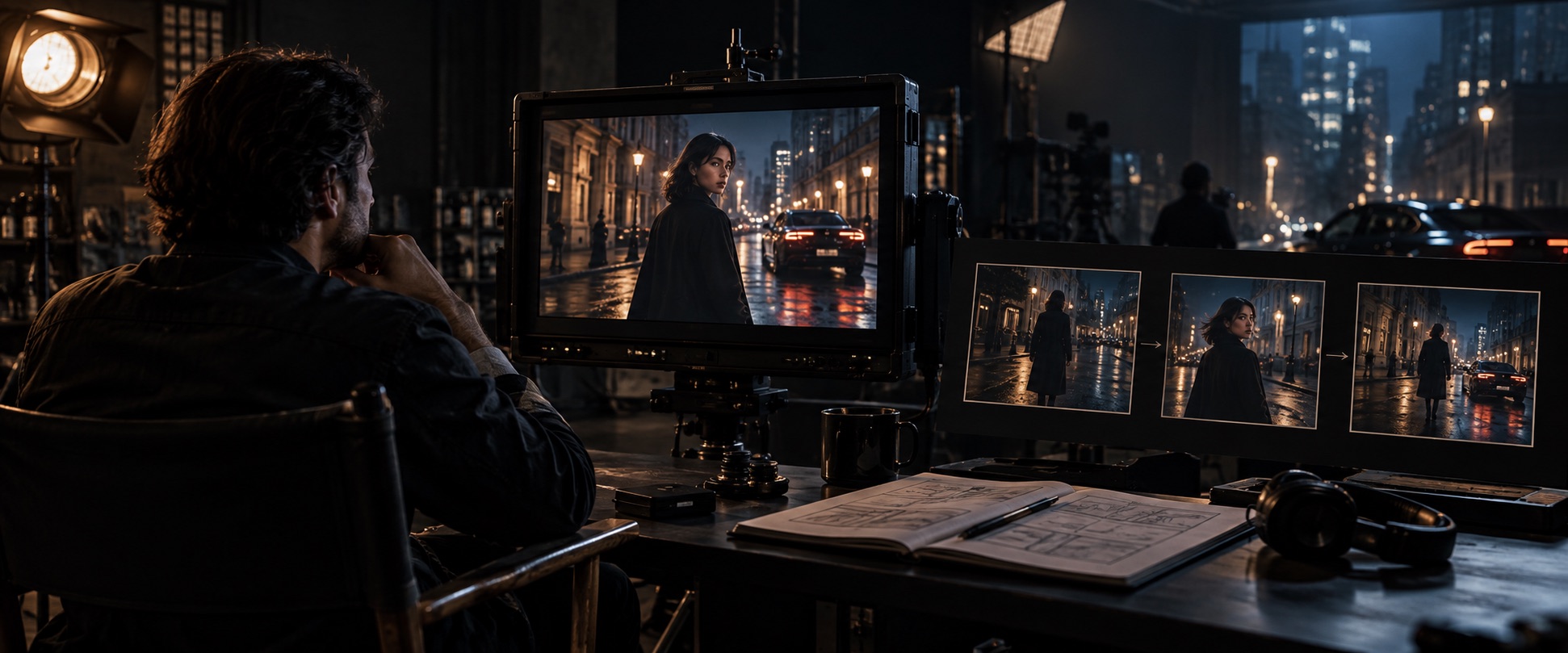
Illustrative concept art for shot planning.
Describe the people, place, action, and mood you have in mind. Try visual directions before committing to a shoot or a full edit.
Give a product photo, portrait, or key visual a purposeful camera move and a believable action while keeping its opening look.
Plan a few shots so a scene can move from setup to detail to reveal within one short video.
Reference recurring people or objects by name, then add sound that belongs to the action. Review the result for consistency before using it.
Kling 3.0 use cases
Create a short ad, a character moment, or a social clip without beginning every idea with a new shoot.
Start with your approved image. Add a reveal, a camera move, and sound while keeping the product shape and materials recognizable.
Use a named character reference as you move between actions and angles, so the audience can follow the same person through the story.
Build a quick visual hook for a vertical feed, then carry the action to a clear final beat with sound that fits the scene.
Kling 3.0 video examples
These official examples show three useful directions: an atmospheric product close-up, a dialogue scene, and a sequence built from distinct camera angles.
Light and camera movement turn a perfume bottle by a window into more than a static packshot.
Video source: Kling AI VIDEO 3.0 model guide
Create your video
A few decisions before generating make it easier to judge whether the result tells the story you intended.
01
Write the scene if you are exploring. Upload an image if the first frame already has the right subject, product, or composition.
02
Give the main action enough time to read. Split the idea into several shots only when a change of view helps the story.
03
Add references for recurring people or objects, and say which details should remain recognizable across the video.
04
Review the action, subject, transitions, and sound. Simplify the brief or adjust one shot before generating again.
Write a better Kling 3.0 prompt
Describe one clear action first. Then say what the camera does, what the audience hears, and which details should stay the same.
Example prompt for an AI video
A cyclist rounds a corner on a wet city street at dusk. The camera tracks alongside at wheel height, then widens as the cyclist rides past. Keep the rider’s face, jacket, and bicycle shape recognizable. Add tire spray, a brief chain rattle, and distant traffic. No text or cuts.
Lead with the action
Tell the viewer what happens before adding atmosphere or style.
Make the camera purposeful
Choose a movement that helps reveal the subject or progress the scene.
Protect key details
Name a saved element or describe the features that must remain recognizable.
Connect sound to what happens
Place dialogue or effects beside the moment they should support.
Kling 3.0 questions
Practical answers about image-to-video, multi-shot stories, sound, and formats in this generator.
Use it for short product ads, character scenes, social videos, and visual concepts. You can begin with text or an image, then direct the action, camera, and sound.
Yes. Upload a first frame to guide the opening. For a single shot, you can also add a last frame when the video needs to end on a specific image.
A single shot can run from 3 to 15 seconds. A multi-shot video can include up to five shots within the same 3–15 second total.
Create an element from reference images or a short video and mention its saved @name in the prompt. This guides consistency; review the result before publishing.
Yes. Describe the ambience, effects, or speech you want alongside the action. Sound is enabled by default here, and you can turn it off.
Yes. Text-led videos can use 9:16 for vertical content, 16:9 for landscape, or 1:1 for square. Uploaded frame images determine the ratio automatically.
Make a Kling 3.0 video
Start from a prompt or an image, keep the subject in focus, and turn one clear idea into a short video with sound.